1 Introduction to R and RStudio
Authors: Data Carpentry contributors - Copyright (c) Data Carpentry; Ed Stowe (adaptation for USACE, Getting R Help Section); Brian Breaker & Edmund Howe (Getting R Help Section)
Last update: 2025-02-03
Acknowledgements: The bulk of this section is adapted from the Data Carpentry course Data Analysis and Visualization in R for Ecologists which is licensed under CC-BY 4.0 by the authors
Learning Objectives:
- Understand how and why R can benefit USACE biologists
- Understand the basic workflow of using R and RStudio
- Understand how to get help for R problems in several ways
1.1 What are R and RStudio?
R refers to a programming language as well as the software that runs R code.
RStudio is a software interface that can make it easier to write R scripts and interact with the R software. It’s a very popular platform, and RStudio also maintains the tidyverse series of packages we will use in this lesson.
1.2 Why learn R?
1.2.1 R does not involve lots of pointing and clicking, and that’s a good thing
Since R is a programming language, the results of your analysis do not rely on remembering a succession of pointing and clicking, but instead on a series of written commands, and that’s a good thing! So, if you want to redo your analysis because you collected more data, you don’t have to remember which button you clicked in which order to obtain your results; you just have to run your script again.
Working with scripts makes the steps you used in your analysis clear, and the code you write can be inspected by someone else who can give you feedback and spot mistakes.
Working with scripts forces you to have a deeper understanding of what you are doing, and facilitates your learning and comprehension of the methods you use.
1.2.2 R code is great for reproducibility
Reproducibility is when someone else (including your future self) can obtain the same results from the same dataset when using the same analysis.
R integrates with other tools to generate manuscripts from your code. If you collect more data, or fix a mistake in your dataset, the figures and the statistical tests in your manuscript are updated automatically.
An increasing number of journals and funding agencies expect analyses to be reproducible, so knowing R will give you an edge with these requirements.
And if you find yourself running similar analyses for many USACE projects, you can simply adapt your code from an earlier project and your analysis and figures will come together in a fraction of the time it would take to analyze things from scratch.
1.2.3 R is interdisciplinary and extensible
With tens of thousands of packages that can be installed to extend its capabilities, R provides a framework that allows you to combine statistical approaches from many scientific disciplines to best suit the analytical framework you need to analyze your data. For instance, R has packages for image analysis, GIS, and time series, including numerous packages that are highly relevant to USACE biologists and engineers (e.g., dataRetrieval a package for downloading USGS gage data directly into an R session).
1.2.4 R works on data of all shapes and sizes
The skills you learn with R scale easily with the size of your dataset. Whether your dataset has hundreds or millions of lines, it won’t make much difference to you.
R is designed for data analysis. It comes with special data structures and data types that make handling of missing data and statistical factors convenient.
R can read data from many different file types, including geospatial data, and connect to local and remote databases.
1.2.5 R produces high-quality graphics
R has well-developed plotting capabilities, and the ggplot2 package is one of, if not the most powerful pieces of plotting software available today. We will begin learning to use ggplot2 in the next module.
1.2.6 R has a large and welcoming community
Thousands of people use R daily. Many of them are willing to help you through mailing lists and websites such as Stack Overflow, or on the RStudio community.
Since R is very popular among researchers, most of the help communities and learning materials are aimed towards other researchers. Python is a similar language to R, and can accomplish many of the same tasks, but is widely used by software developers and software engineers, so Python resources and communities are not as oriented towards researchers.
1.3 Navigating RStudio
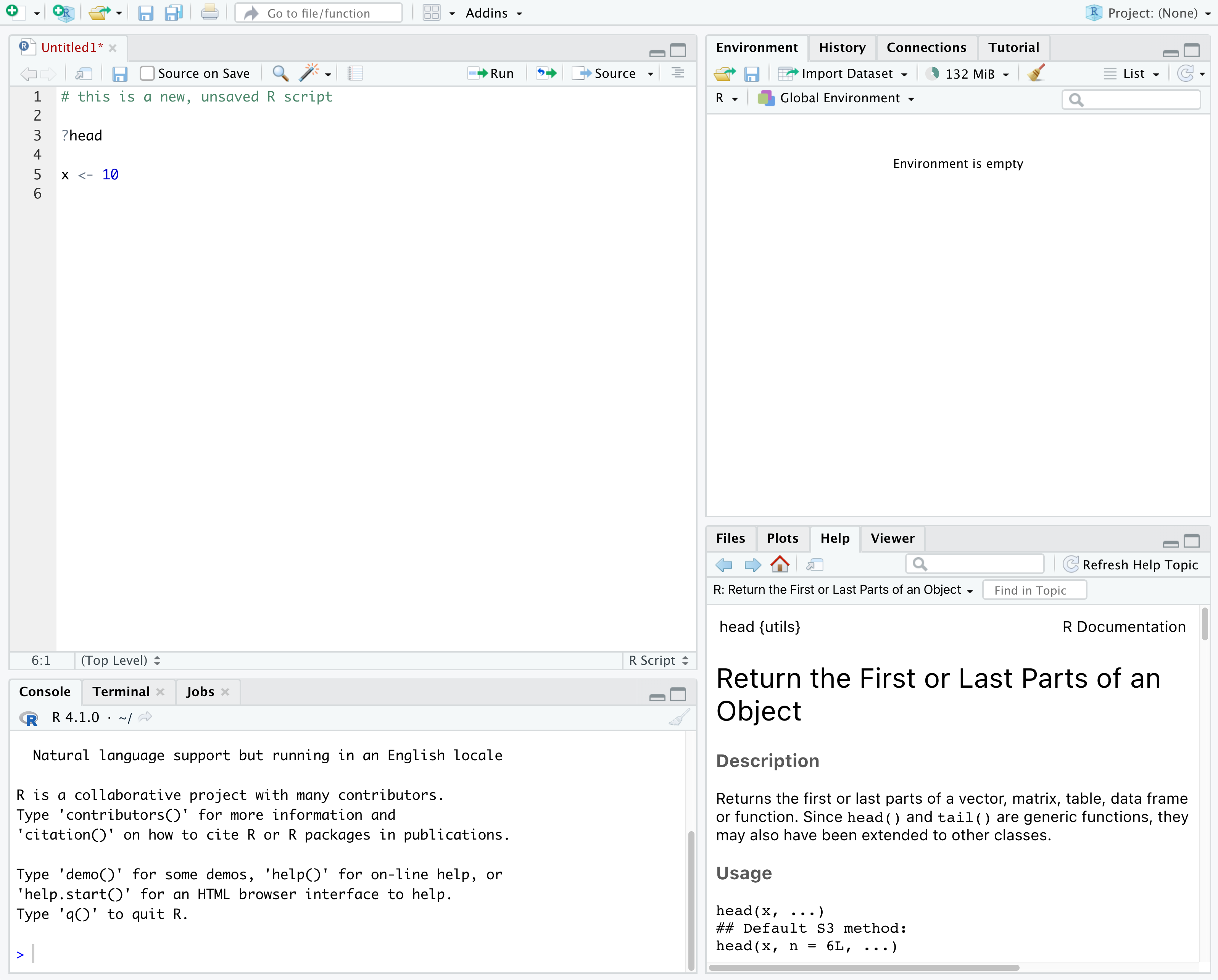
We will use the RStudio integrated development environment (IDE) to write code into scripts, run code in R, navigate files on our computer, inspect objects we create in R, and look at the plots we make. RStudio has many other features that can help with things like version control, developing R packages, and writing Shiny apps, but we won’t cover those in the workshop.
 {alt=‘Screenshot of RStudio showing the 4 “panes”.’; width = 100%}
In the above screenshot, we can see 4 “panes” in the default layout:
- Top-Left: the Source pane that displays scripts and other files.
- If you only have 3 panes, and the Console pane is in the top left, press Shift+Cmd+N (Mac) or Shift+Ctrl+N (Windows) to open a blank R script, which should make the Source pane appear.
- Top-Right: the Environment/History pane, which shows all the objects in your current R session (Environment) and your command history (History)
- there are some other tabs here, including Connections, Build, Tutorial, and possibly Git
- we won’t cover any of the other tabs, but RStudio has lots of other useful features
- Bottom-Left: the Console pane, where you can interact directly with an R console, which interprets R commands and prints the results
- There are also tabs for Terminal and Jobs
- Bottom-Right: the Files/Plots/Help/Viewer pane to navigate files or view plots and help pages
You can customize the layout of these panes, as well as many settings such as RStudio color scheme, font, and even keyboard shortcuts. You can access these settings by going to the menu bar, then clicking on Tools → Global Options.
RStudio puts most of the things you need to work in R into a single window, and also includes features like keyboard shortcuts, autocompletion of code, and syntax highlighting (different types of code are colored differently, making it easier to navigate your code).
1.4 Getting set up in RStudio
It is a good practice to organize your projects into self-contained folders right from the start, so we will start building that habit now. A well-organized project is easier to navigate, more reproducible, and easier to share with others. Your project should start with a top-level folder that contains everything necessary for the project, including data, scripts, and images, all organized into sub-folders.
RStudio provides a “Projects” feature that can make it easier to work on individual projects in R. We will create a project that we will keep everything for this workshop.
- Start RStudio (you should see a view similar to the screenshot above).
- In the top right, you will see a blue 3D cube and the words “Project: (None)”. Click on this icon.
- Click New Project from the dropdown menu.
- Click New Directory, then New Project.
- Type out a name for the project, we recommend
R-Ecology-Workshop. - Put it in a convenient location using the “Create project as a subdirectory of:” section. We recommend your
Desktop. You can always move the project somewhere else later, because it will be self-contained. - Click Create Project and your new project will open.
Next time you open RStudio, you can click that 3D cube icon, and you will see options to open existing projects, like the one you just made.
One of the benefits to using RStudio Projects is that they automatically set the working directory to the top-level folder for the project. The working directory is the folder where R is working, so it views the location of all files (including data and scripts) as being relative to the working directory. You may come across scripts that include something like setwd("/Users/YourUserName/MyCoolProject"), which directly sets a working directory. This is usually much less portable, since that specific directory might not be found on someone else’s computer (they probably don’t have the same username as you). Using RStudio Projects means we don’t have to deal with manually setting the working directory.
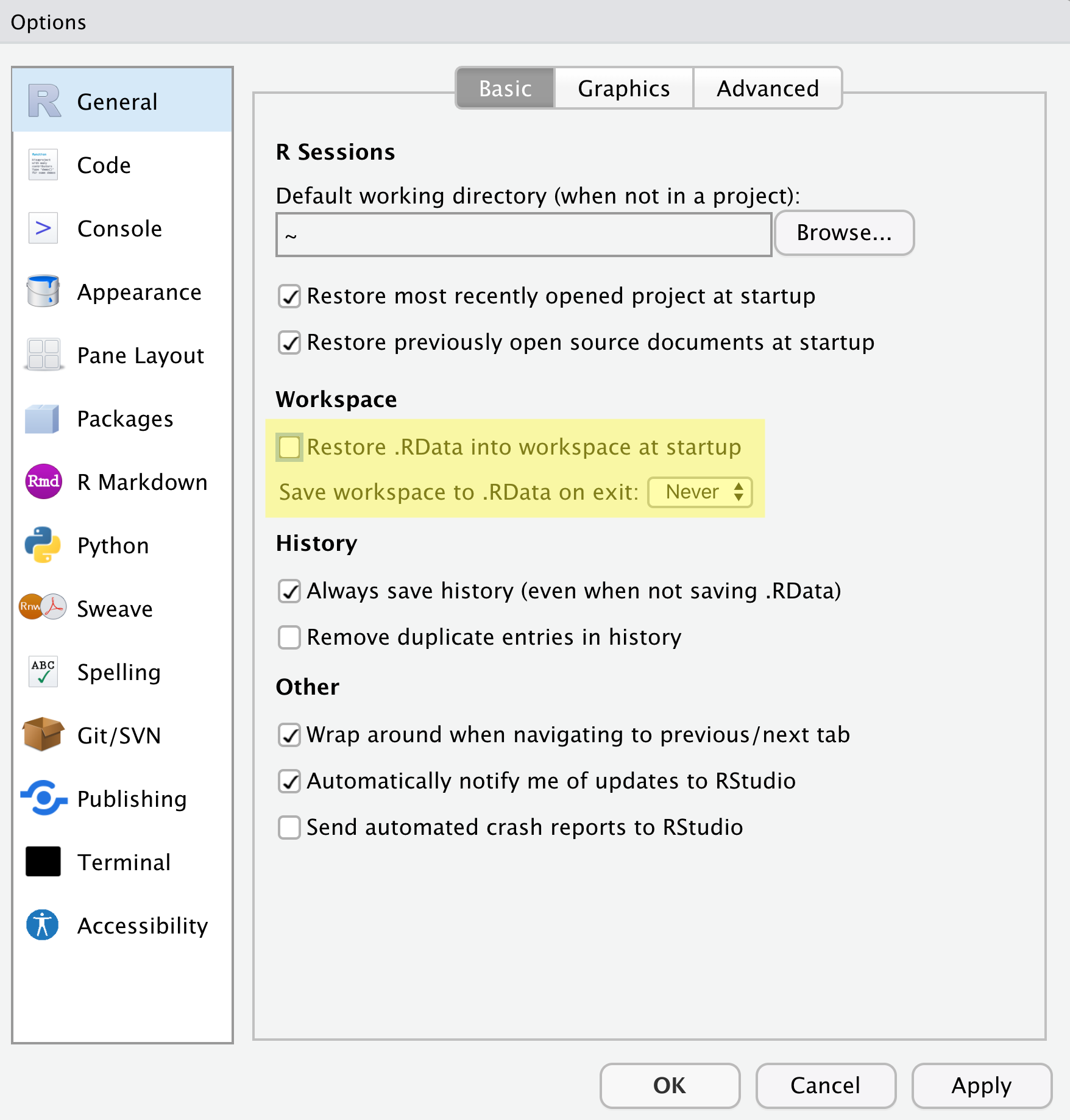
There are a few settings we will need to adjust to improve the reproducibility of our work. Go to your menu bar, then click Tools → Global Options to open up the Options window.
 {alt=‘Screenshot of the RStudio Global Options, with “Restore .RData into workspace at startup” unchecked, and “Save workspace to .RData on exit” set to “Never”.’; width = 100%}
Make sure your settings match those highlighted in yellow. We don’t want RStudio to store the current status of our R session and reload it the next time we start R. This might sound convenient, but for the sake of reproducibility, we want to start with a clean, empty R session every time we work. That means that we have to record everything we do into scripts, save any data we need into files, and store outputs like images as files. We want to get used to everything we generate in a single R session being disposable. We want our scripts to be able to regenerate things we need, other than “raw materials” like data.
1.5 Organizing your project directory
Using a consistent folder structure across all your new projects will help keep a growing project organized, and make it easy to find files in the future. This is especially beneficial if you are working on multiple projects, since you will know where to look for particular kinds of files.
We will use a basic structure for this workshop, which is often a good place to start, and can be extended to meet your specific needs. Here is a diagram describing the structure:
R-Ecology-Workshop
│
└── scripts
│
└── data
│    └── cleaned
│    └── raw
│
└─── images
│
└─── documents
Within our project folder (R-Ecology-Workshop), we first have a scripts folder to hold any scripts we write. We also have a data folder containing cleaned and raw subfolders. In general, you want to keep your raw data completely untouched, so once you put data into that folder, you do not modify it. Instead, you read it into R, and if you make any modifications, you write that modified file into the cleaned folder. We also have an images folder for plots we make, and a documents folder for any other documents you might produce.
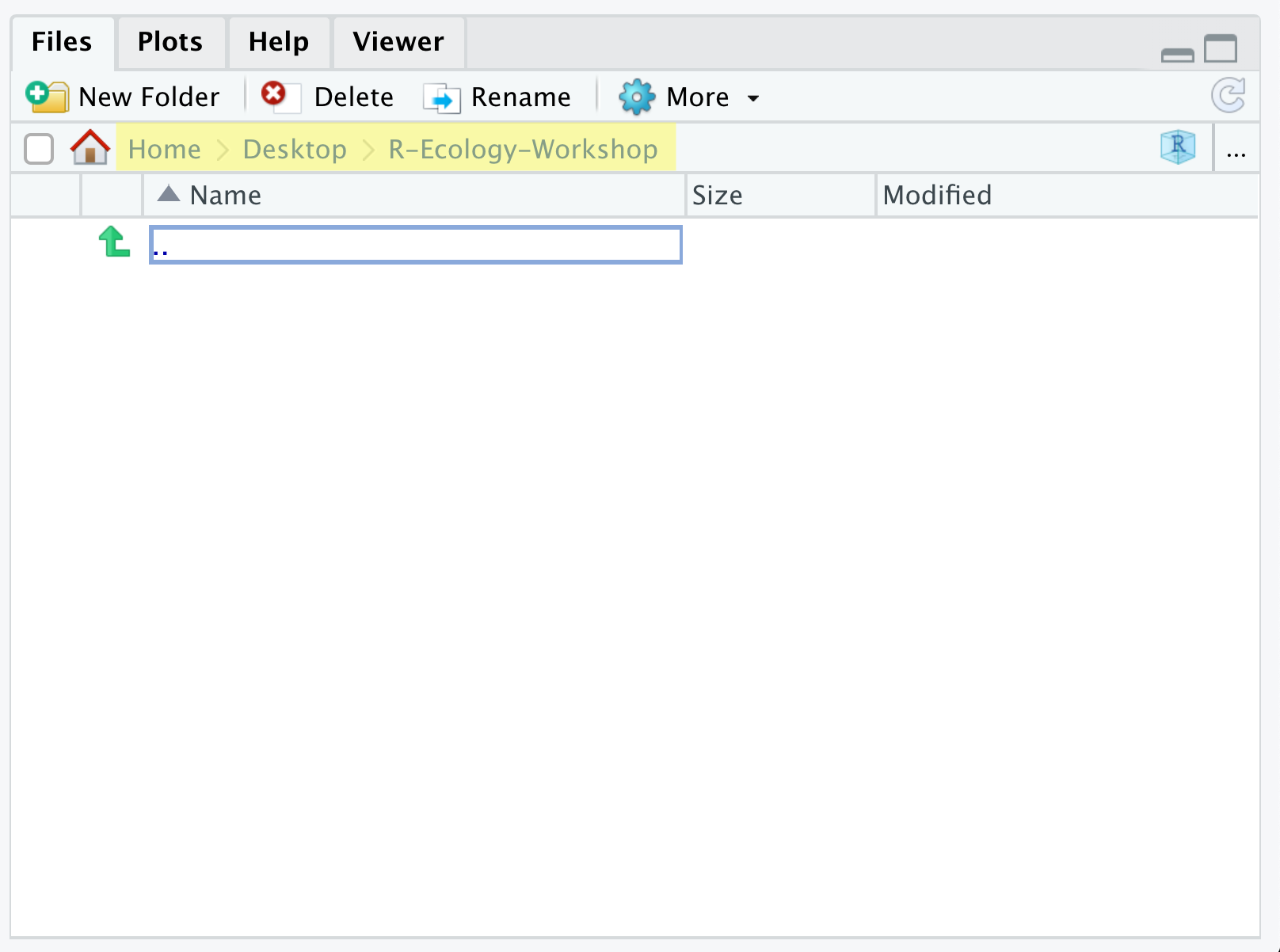
Let’s start making our new folders. Go to the Files pane (bottom right), and check the current directory, highlighted in yellow below. You should be in the directory for the project you just made, in our case R-Ecology-Workshop. You shouldn’t see any folders in here yet.
 {alt=‘RStudio Files pane with current directory path highlighted.’; width = 100%}
Next, click the New Folder button, and type in scripts to generate your scripts folder. It should appear in the Files list now. Repeat the process to make your data, images, and documents folders. Then, click on the data folder in the Files pane. This will take you into the data folder, which will be empty. Use the New Folder button to create raw and cleaned folders. To return to the R-Ecology-Workshop folder, click on it in the file path, which is highlighted in yellow in the previous image. It’s worth noting that the Files pane helps you create, find, and open files, but moving through your files won’t change where the working directory of your project is.
1.6 Working in R and RStudio
The basis of programming is that we write down instructions for the computer to follow, and then we tell the computer to follow those instructions. We write these instructions in the form of code, which is a common language that is understood by the computer and humans (after some practice). We call these instructions commands, and we tell the computer to follow the instructions by running (also called executing) the commands.
1.6.1 Console vs. script
You can run commands directly in the R console, or you can write them into an R script. It may help to think of working in the console vs. working in a script as something like cooking. The console is like making up a new recipe, but not writing anything down. You can carry out a series of steps and produce a nice, tasty dish at the end. However, because you didn’t write anything down, it’s harder to figure out exactly what you did, and in what order.
Writing a script is like taking nice notes while cooking- you can tweak and edit the recipe all you want, you can come back in 6 months and try it again, and you don’t have to try to remember what went well and what didn’t. It’s actually even easier than cooking, since you can hit one button and the computer “cooks” the whole recipe for you!
An additional benefit of scripts is that you can leave comments for yourself or others to read. Lines that start with # are considered comments and will not be interpreted as R code.
1.6.1.1 Console
- The R console is where code is run/executed
- The prompt, which is the
>symbol, is where you can type commands - By pressing Enter, R will execute those commands and print the result.
- You can work here, and your history is saved in the History pane, but you can’t access it in the future
1.6.1.2 Script
- A script is a record of commands to send to R, preserved in a plain text file with a
.Rextension - You can make a new R script by clicking
File → New File → R Script, clicking the green+button in the top left corner of RStudio, or pressing Shift+Cmd+N (Mac) or Shift+Ctrl+N (Windows). It will be unsaved, and called “Untitled1” - If you type out lines of R code in a script, you can send them to the R console to be evaluated
- Cmd+Enter (Mac) or Ctrl+Enter (Windows) will run the line of code that your cursor is on
- If you highlight multiple lines of code, you can run all of them by pressing Cmd+Enter (Mac) or Ctrl+Enter (Windows)
- By preserving commands in a script, you can edit and rerun them quickly, save them for later, and share them with others
- You can leave comments for yourself by starting a line with a
#
1.6.1.3 Example
Let’s try running some code in the console and in a script. First, click down in the Console pane, and type out 1+1. Hit Enter to run the code. You should see your code echoed, and then the value of 2 returned.
Now click into your blank script, and type out 1+1. With your cursor on that line, hit Cmd+Enter (Mac) or Ctrl+Enter (Windows) to run the code. You will see that your code was sent from the script to the console, where it returned a value of 2, just like when you ran your code directly in the console.
1.7 Getting Help with R Coding
Being able to find help and interpret it is probably one of the most important skills for learning a new language, including R. Thankfully, there are many helpful resources for learning R, and several recent developments make it easier to use R code than ever.
1.7.1 Help from within RStudio
Help functions: There are numerous ways to get help in R without leaving RStudio. First, the help() function and the ? help operator (run from either a script or the consile) can both be used to access documentation for R functions and packages. For example, running the commands help(print) or ?print will open documentation for the print() function, while specifying help(package = "dplyr") will provide info on the dplyr package. If you don’t know the exact name of a function or package you can run apropos("print") which will return all available functions with “print” in the name. Similarly, running ??print provides fuzzy matching for a search term and returns not only function help pages, but also vignettes and other R resources pertaining to the term.
RStudio autocomplete: While typing the first few letters of a function in a script or the console, you can press Tab to see autocomplete options. This is especially helpful if you don’t remember the exact name of the function you are looking for. Similarly, if you’re trying to remember the specific arguments (i.e., inputs) of a function, you can type tab within the parentheses of that function (e.g., pivot_wider()) in order to see which arguments the function is looking for. Finally, when you’re working with a package, you can also type the name of the (already-installed) package followed by two colons (e.g., dplyr::) and Rstudio shows a dropdown menu of the available functions in this package.
1.7.2 R Task Views
Task views provide an annotated list of packages relevant to a particular field. Two useful ones for USACE scientists/engineers are:
-
Environmetrics Task View: an overview of packages relevant to ecological and environmental research.
- Spatial Analysis Task View: relevant packages for spatial analysis, GIS, and Remote Sensing in R.
1.7.3 Google and StackOverflow
Often the quickest way to get help is with Google. The key to searching for R help is to try to be as specific as possible, and to include the term R or any specific packages in your search. Many of the most helpful responses can be found on the site StackOverflow with the ‘r’ tag. StackOverflow is a discussion forum for all things related to programming. You can then use this tag and the search functions in StackOverflow and find answers to almost anything you can think of.
1.7.4 AI chatbots
Artificial intelligence chatbots (e.g., ChatGPT) are often quite helpful with code-related questions and can generate code for doing many specific tasks. However, be careful when using chatbots: they sometimes generate inaccurate code or even “hallucinate” code that does not exist.
1.7.5 Package vignettes
R package developers often include vignettes with their packages. These vignettes walk a user through common applications for their packages, and can be extremely instructive for learning how to perform specific types of analyses. If a vignette exists, it is usually found on the packages reference page on CRAN2 , under the Vignette section. Not all packages have vignettes, and some are hosted on GitHub or other sites as opposed to CRAN.
1.7.6 Other Resources
There are too many resources to mention and everyone has their favorites. Here are just a few:
-
R For Data Science: The best known guide for using R with tidy methods.
-
Advanced R: A follow-up to the R for Data Science book.
-
CRAN Cheatsheets: A good cheat sheet from the official source.
- RStudio Cheatsheets: Additional cheat sheets from RStudio. The data wrangling cheatsheet may be especially useful.
1.8 Summary
- R is a programming language and software used to run commands in that language
- RStudio is software to make it easier to write and run code in R
- Use R Projects to keep your work organized and self-contained
- Write your code in scripts for reproducibility and portability
- Learning how to get R help is important