23 HSI Workshop
23.1 Overview
As part of the EMRRP webinar series, Ed Stowe (postdoctoral fellow at ERDC) will lead a short course on HSI modeling using the ecorest package on 2/11/26. More information on this material can be found here.
Preparing for this workshop is optional, but if attendees want to run code along with the instructor, please complete the following steps to get ready. Please send any questions about the prep or tutorial to Ed (edward.s.stowe AT erdc.dren.mil)
23.2 Preparation steps
23.2.1 Download R and RStudio
Use the App Portal to download and install the latest version of R. (Searching for “R Core Team” may be the easiest way to find R). If you previousy downloaded R, but do not have a recent version (e.g., version 4.5.1), you should also download R. You don’t need to uninstall old versions.
Once you have installed R, download and install R Studio. When you open RStudio, the console on the lower left should also display the R version that you downloaded (e.g., ‘R version 4.5.2 (2025-10-31) – “[Not] Part in a Rumble”’).
23.2.2 Set up folders
On your computer, create a folder for the project with an informative name (e.g., “hsi_workshop”).
Make three additional folders within the “hsi_workshop” folder:
* One for data (entitled “data”)
* One for R scripts (entitled “code”)
* One for output (entitled “output”).
23.2.3 Install packages
This modules uses two R packages. Packages are useful sets of R code written by other people to supplement the code included in the base R language.
To try to install these packages, open RStudio and copy and paste the following command into the console window (look for a blinking cursor on the bottom left), then press the Enter (Windows) or Return (MacOS) to execute the command.
install.packages(c("tidyverse", "ecorest"))Alternatively, you can install the packages using RStudio’s graphical user interface by going to Tools > Install Packages and typing the names of the packages separated by a comma.
R will try to download and install the packages on your machine.
When the installation has finished, you can try to load the packages by pasting the following code into the console:
If you do not see an error like there is no package called ‘...’ you are good to go!
23.2.4 Download data and script files
This tutorial will use three data files and one R script that are hosted on GitHub. To access the files, simply visit the links below and click the download button (see image below).
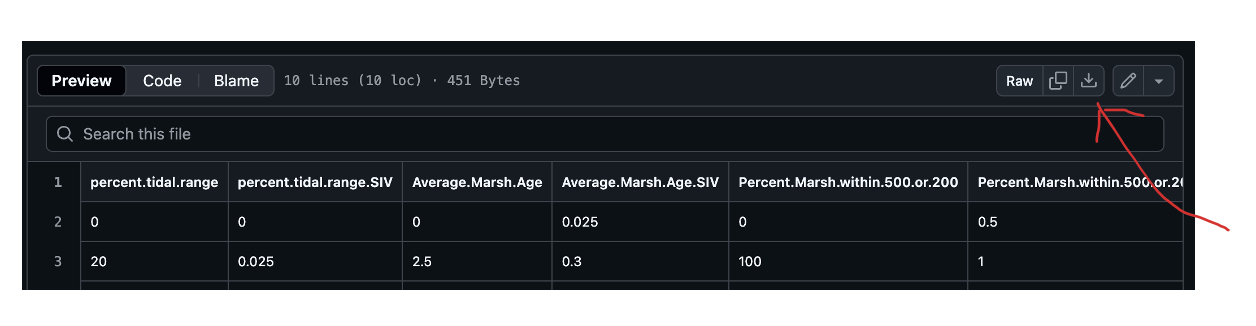
Once you’ve downloaded the files, you should move the data files into the “data” folder of your “hsi_workshop” folder and the R script file into the “code” folder.